GitHub Setup Guide
This page contains instructions for setting up your GitHub account on Pupper and uploading the labs into your shared repository.
Setup a Shared Repository
Log into GitHub on your browser and go to github.com/new to create a new repository.
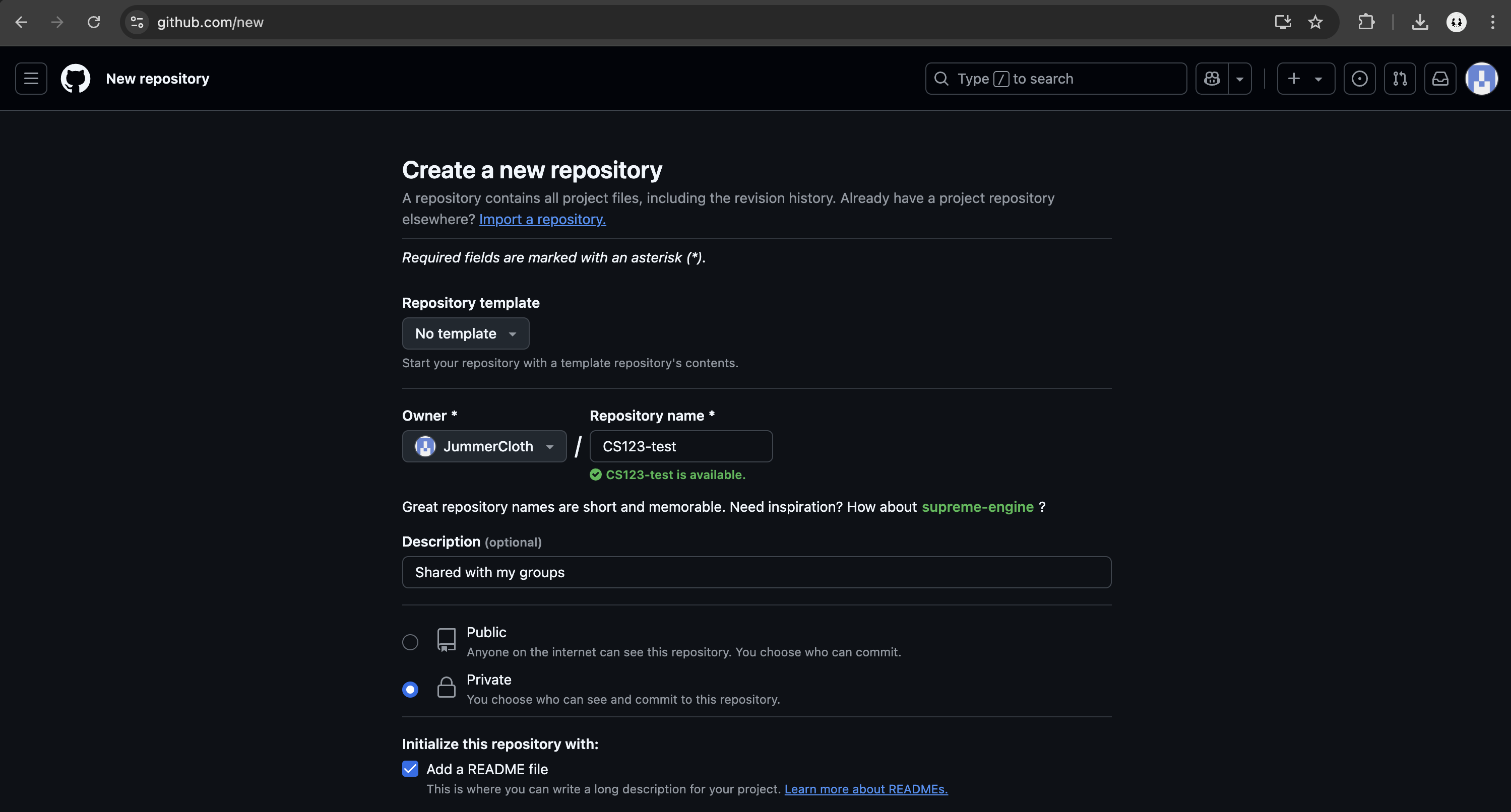
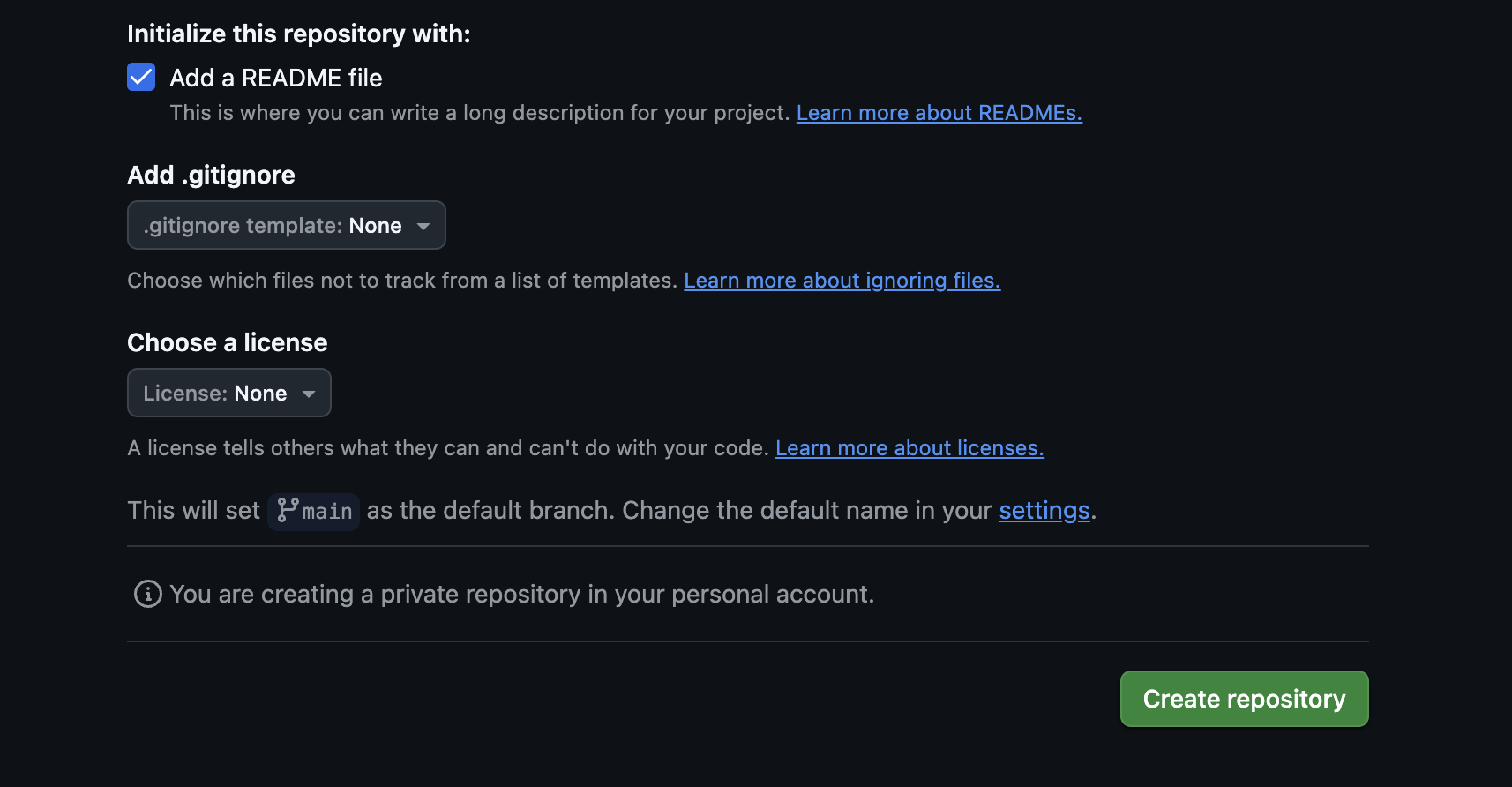
Name your repository (e.g., “CS123”) and initialize it with a README file. Leave other options at their defaults.
After creating the repository, this is how the home page should look like:
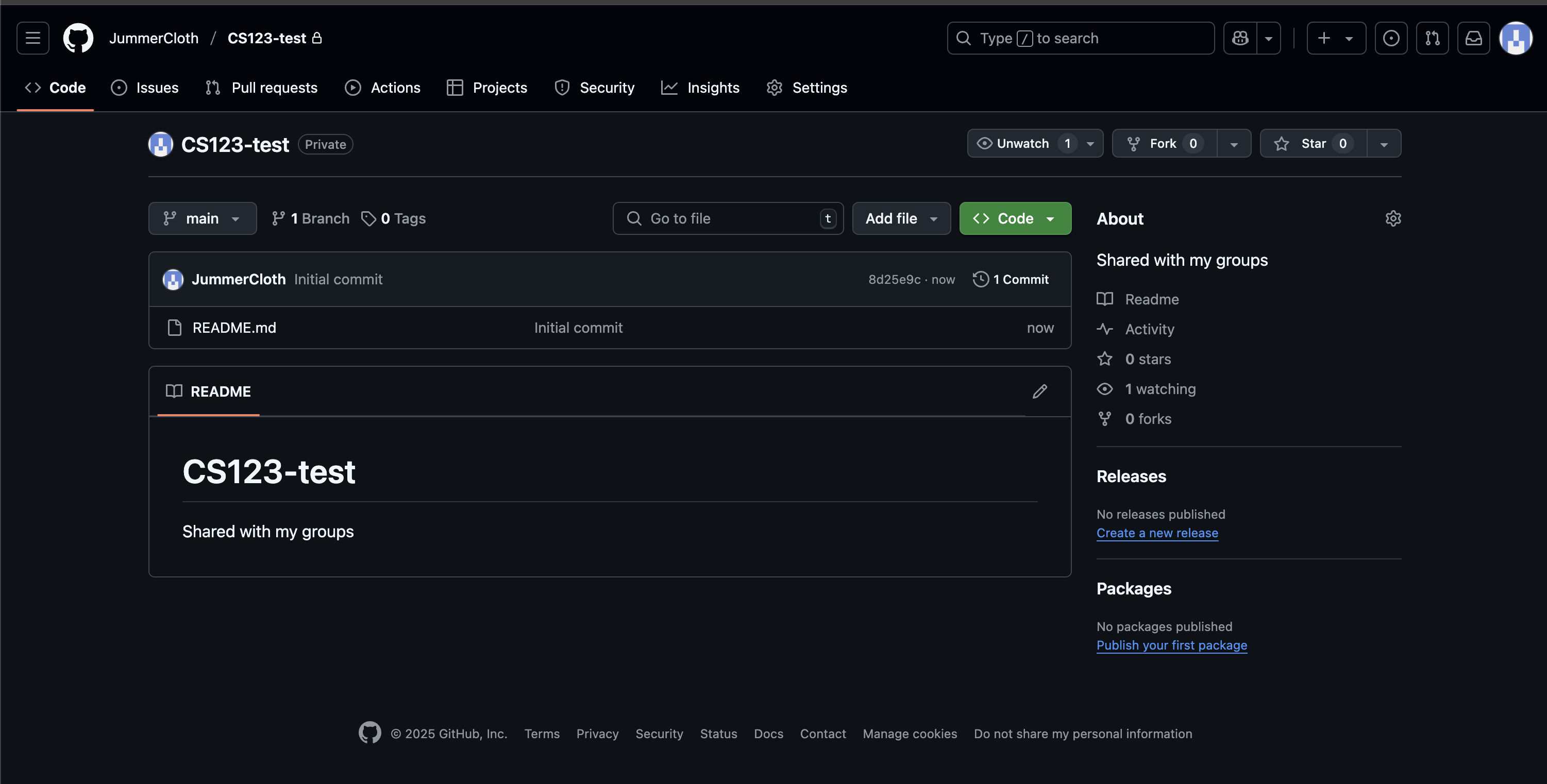
You can access the repository by clicking the green “Code” button and copying the HTTPS URL.

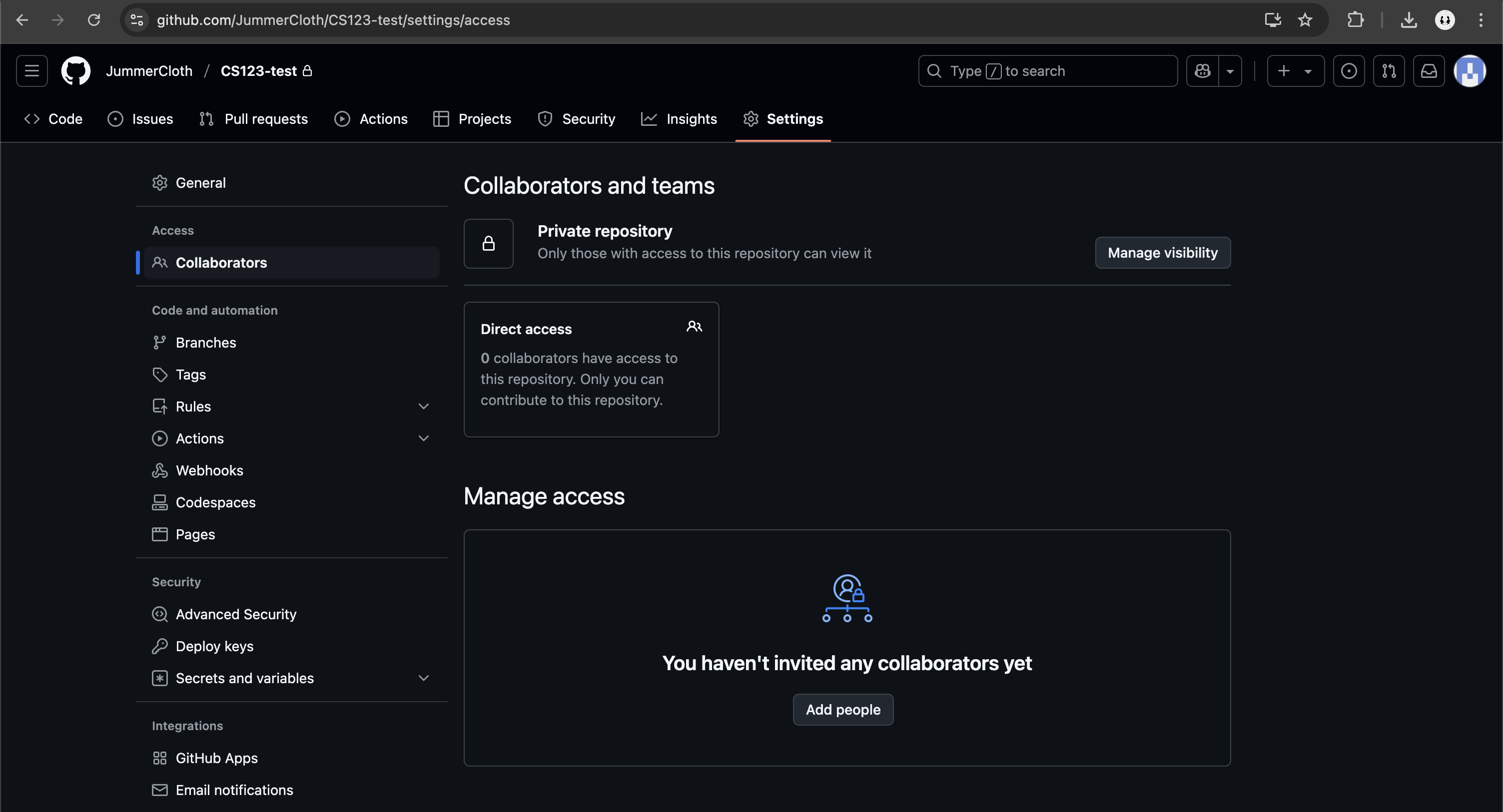
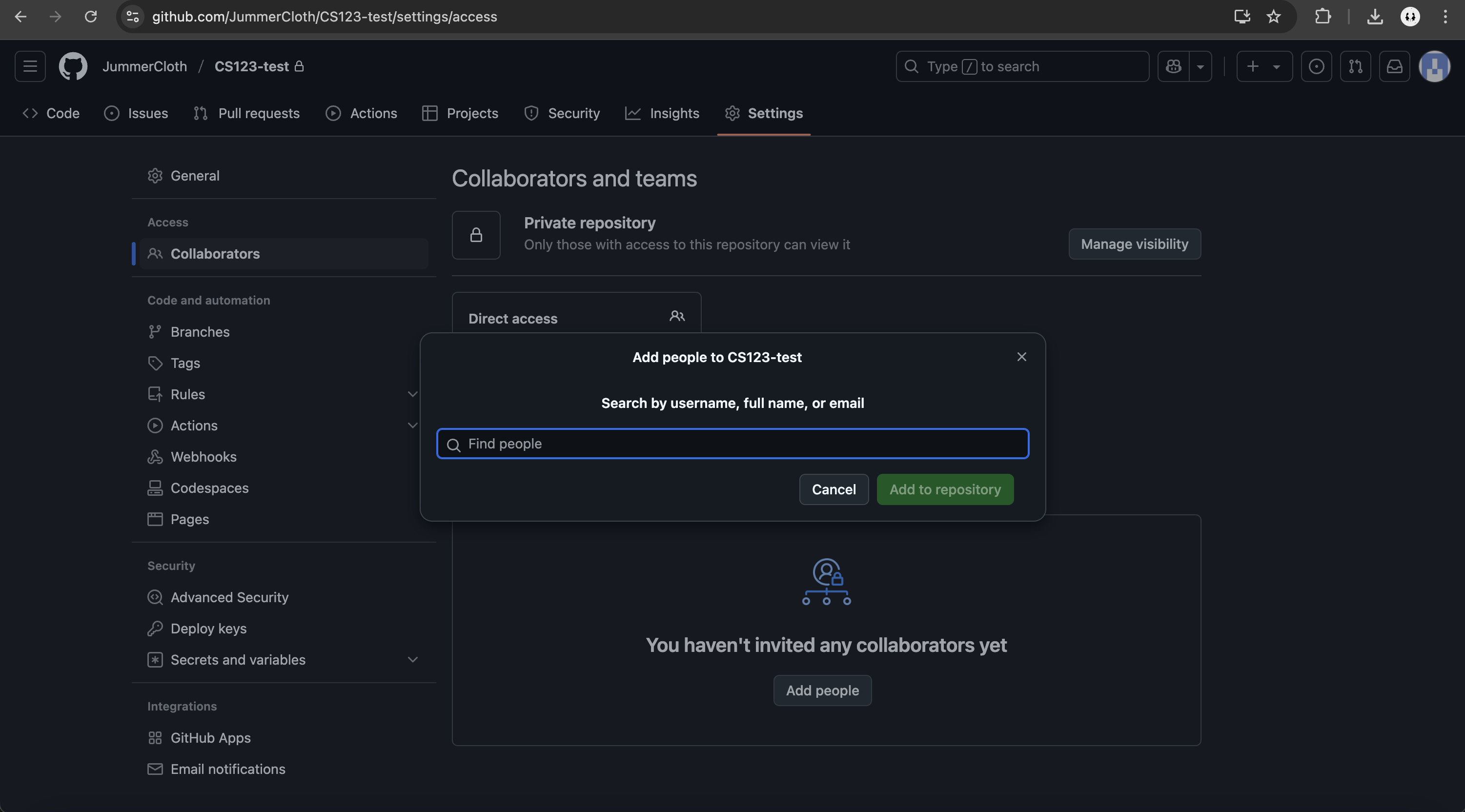
Share the repository with your team:
Click the “Settings” gear icon in the top right
In the “Collaborators” section, click “Add people”
Enter your team members’ usernames and add them
Set Up SSH Authentication on Pupper
The most secure and convenient way to connect your GitHub account to Pupper is using SSH keys. This eliminates the need to enter your password for every push or pull operation.
Generate an SSH Key
Replace your_email@example.com with your GitHub-linked email:
ssh-keygen -t ed25519 -C "your_email@example.com"
Press Enter to accept the default file path (~/.ssh/id_ed25519)
Optionally set a passphrase for additional security
Copy Your Public Key
cat ~/.ssh/id_ed25519.pubCopy the entire output.
Add the Public Key to GitHub
Log into GitHub in Pupper’s browser
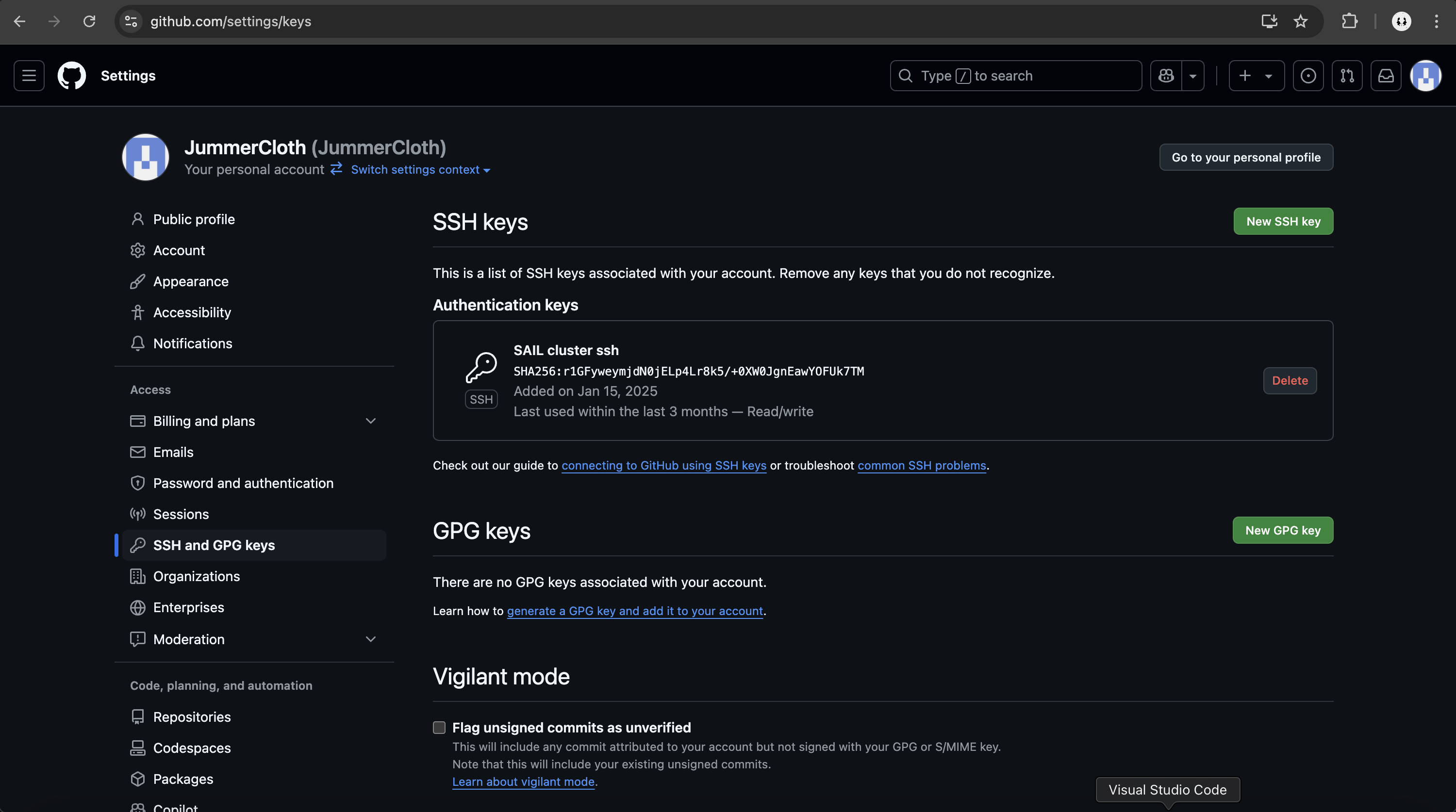
Go to Settings → SSH and GPG keys
Click “New SSH key”
Paste your key, add a descriptive title (e.g., “Pupper SSH Key”), and save. This is how the page should look like with my SAIL cluster key:
Test the Connection
ssh -T git@github.com
You should see a message like: “Hi your-username! You’ve successfully authenticated, but GitHub does not provide shell access.”
After Rebooting Pupper in the Future
To check if your key is still loaded:
ssh-add -lIf your key isn’t listed, add it manually:
ssh-add ~/.ssh/id_ed25519
Uploading Labs to Your Shared Repository
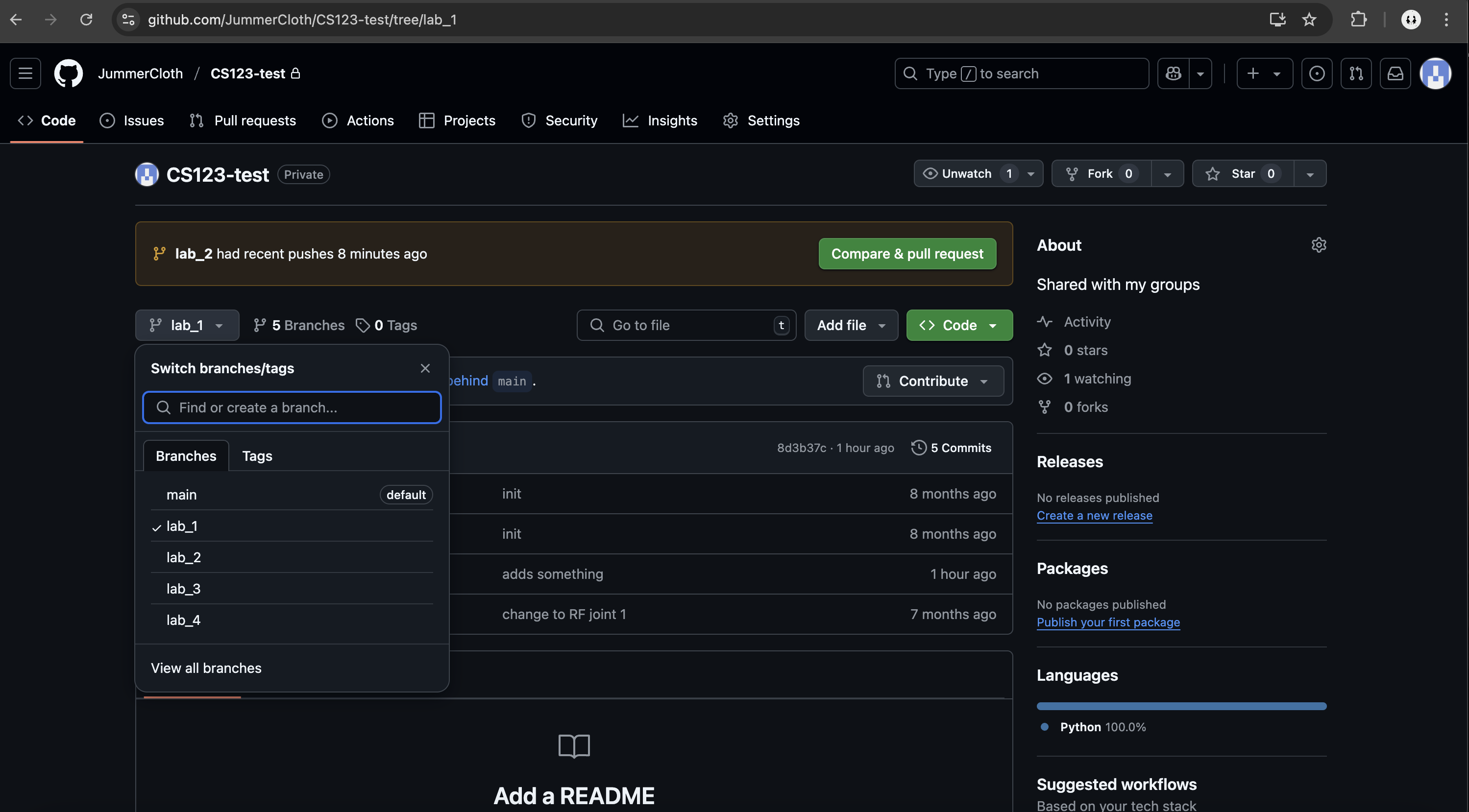
Since you’ll be managing multiple labs in one repository, create a new branch for each lab. Here’s how to upload Lab 1:
Set your shared repository as the origin remote for the lab (replace the URL with your shared repository URL):
git remote set-url origin git@github.com:your-username/CS123.git
Warning
Make sure you are using the SSH URL for your shared repository. Using the HTTPS URL will not work!
Create and switch to a new branch for the lab (replace lab1 with the appropriate lab number in future labs):
git branch -M lab1
Note
If you need to rename a branch due to a mistake, use:
git branch -m old_name new_name
Add and commit your changes (the message will be seen in the GitHub UI):
git add .
git commit -m "Lab 1: Initial implementation"
Push to your shared repository:
git push -u origin lab1
Warning
Make sure you’re pushing to the correct branch! Pushing to the wrong branch could overwrite other labs’ code.
Verify your code appears in the lab1 branch on your shared repository:
Need Help?
If you encounter any issues:
Check the GitHub documentation
Ask your TAs or classmates
Consult the course staff during office hours
Use online resources like ChatGPT for troubleshooting
Happy coding!